GTA 6 is going to push the Xbox Series X to its limits, and the Series S even more so. Whether you're on the premium hardware or the budget console, this guide walks through every step to make sure you're playing — not troubleshooting — on November 19.
First: Series X vs. Series S — What to Expect
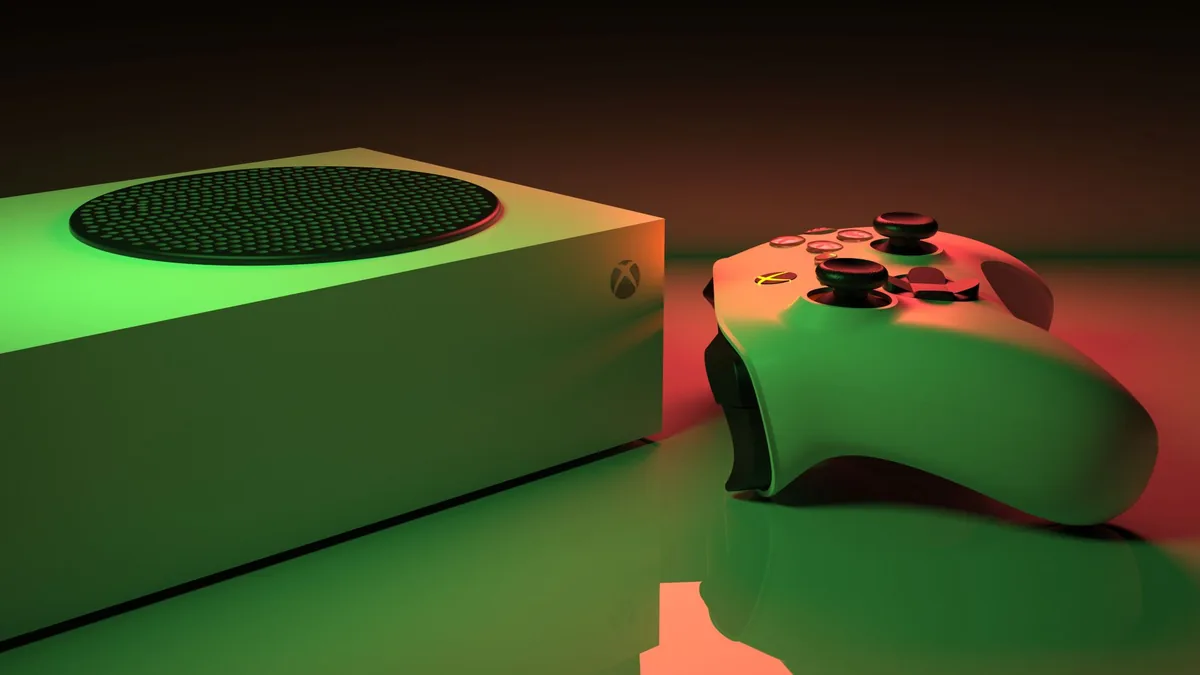
Both consoles will run GTA 6, but the experience will differ. Here's a realistic breakdown:
SERIES X
SERIES S
Step 1: Clear & Expand Your Storage
1 Audit your storage
Press the Xbox button, go to Profile & system → Settings → System → Storage devices. You'll see exactly what's on your drive. Sort by size and identify games you can delete or move.
2 Move games to an external USB drive
Xbox lets you store Xbox Series X|S games on a standard USB 3.0 external hard drive. You can't play current-gen games from USB, but you can move them back to the internal SSD far faster than re-downloading. Any USB 3.0 drive 128GB+ works — a 2TB external costs $50-70. Go to My games & apps → Manage → Move or copy.
3 Consider the Seagate Expansion Card
The official Seagate Storage Expansion Card plugs directly into the back of your Xbox and functions identically to the internal SSD — you can play Series X|S games directly from it. This is the only expansion option that lets you play current-gen games without transferring them back.
| Expansion Card | Capacity | Price Range | |
|---|---|---|---|
| Seagate Expansion Card | 1TB | $110-$140 | ★ BEST VALUE |
| Seagate Expansion Card | 2TB | $200-$250 | ★ SERIES S ESSENTIAL |
| WD Expansion Card (C50) | 1TB | $100-$130 |
Step 2: Update Your System
1 Enable automatic system updates
Settings → System → Updates → Keep my console up to date. Also enable "Keep my games & apps up to date" so GTA 6 patches download automatically.
2 Enable Instant-On mode
Settings → General → Power options → Instant-on. This allows your Xbox to download updates and pre-load games even when the console appears off. Slightly higher power draw compared to Energy Saver mode, but it means GTA 6 can pre-load overnight without you lifting a finger.
3 Configure Quick Resume
Quick Resume lets you suspend and instantly resume multiple games. GTA 6 will likely support this — meaning you can switch to another game and come back to exactly where you left off without reloading. The feature works automatically, but make sure you have Instant-On enabled (above) for it to persist when the console is off.
Step 3: Optimize Your Network
1 Test your connection
Settings → General → Network settings → Test network speed & statistics. Note your download speed and latency. For GTA Online, you want latency under 60ms and download speed above 50 Mbps for a smooth experience.
2 Use Ethernet or optimize Wi-Fi
Wired is always better for online gaming. If you can't run a cable, use the 5GHz Wi-Fi band (not 2.4GHz) and make sure your Xbox has a clear line of sight to the router. Powerline adapters ($30-50) are a solid middle ground if your router is in another room.
3 Set up a custom DNS
Go to Settings → General → Network settings → Advanced settings → DNS settings → Manual. Set Primary to 1.1.1.1 and Secondary to 1.0.0.1 (Cloudflare). This can improve connection stability during high-traffic periods like launch night.
4 Open your NAT type
For GTA Online multiplayer, you want an Open NAT. Check your NAT status in Network settings → Test NAT type. If it shows "Moderate" or "Strict," enable UPnP on your router (usually under Advanced Settings in your router admin page at 192.168.1.1). An Open NAT means fewer connection issues finding sessions in GTA Online.
Step 4: Xbox Live, Game Pass & Account Security
1 Verify your Xbox Live Gold / Game Pass status
GTA 6 Online will require Xbox Live Gold (included in Game Pass Core, Standard, and Ultimate). Check your subscription at Settings → Account → Subscriptions. If you're not subscribed, Game Pass Core ($59.99/year) is the minimum tier for online multiplayer.
2 Enable Two-Factor Authentication
Go to account.microsoft.com/security and enable 2FA using the Microsoft Authenticator app. GTA accounts are prime targets for hackers. You don't want to lose your character progress or in-game purchases because someone guessed your password.
3 Set your Xbox as your Home Xbox
Settings → General → Personalization → My home Xbox. This ensures your digital purchases (including GTA 6) are playable even if Xbox Live experiences outages — which is common during massive launches when millions of people are hitting the servers simultaneously.
Step 5: Controller Prep
1 Check for stick drift and battery life
Test your sticks in Settings → Devices & connections → Accessories → Controller. If you notice drift, try recalibrating or cleaning around the stick base with compressed air. The Xbox controller uses AA batteries or a rechargeable battery pack — make sure you've got fresh batteries or a fully charged pack ready for an extended launch night session.
2 Update controller firmware
Connect via USB and go to Settings → Devices & connections → Accessories. Select your controller and check for firmware updates. These updates fix connectivity issues and can improve input response times.
🎮 Standard Xbox Controller
Perfectly capable. The refined design from the Series X|S launch is comfortable for marathon sessions. Share button for instant clips. ~$59 for a replacement.
🎮 Xbox Elite Controller Series 2
Back paddles, adjustable tension sticks, hair trigger locks. Rechargeable battery built in. Significant advantage for GTA Online PvP. ~$179.
Step 6: Display & Audio Settings
1 Run the Xbox HDR calibration
Settings → General → TV & display options → Calibrate HDR for games. Xbox has a built-in HDR calibration tool that's better than most TV manufacturer calibration. Run through the sliders in a dark room for the best results. GTA 6's Leonida sunsets and neon-lit Vice City nights will look dramatically better with properly calibrated HDR.
2 Enable Auto Low Latency Mode (ALLM)
Settings → General → TV & display options → Video modes → Auto low-latency mode. This automatically switches your TV to Game Mode when gaming and back to normal when watching media. No more manually toggling.
3 Check your HDMI cable and VRR
If your TV supports Variable Refresh Rate (VRR), enable it at TV & display options → Video modes → Variable refresh rate. VRR eliminates screen tearing, which is especially noticeable during high-speed driving in GTA. Make sure you're using the HDMI 2.1 cable that came with the Series X for full feature support.
Step 7: Your Launch Day Game Plan
📅 Right now: The Xbox Store placeholder
GTA 6 placeholder files are already available on the Xbox Store. These are small dummy files that reserve your spot — they'll be replaced with the full game data when pre-load goes live. If you see them, go ahead and "download" — it positions you for automatic pre-load when it activates.
📅 1-2 weeks before launch: Pre-load
With Instant-On enabled, your Xbox will automatically download the full game when pre-load activates. Make sure you have enough storage cleared (250GB recommended buffer). The game will appear in "My games & apps" with a lock icon until launch time.
📅 November 18 (night before)
Check that the download is complete. Update your controller. Close all running games. Test your internet connection one more time. Set your Xbox to your local timezone (this affects unlock time). Mute GTA-related keywords on social media — spoilers will leak from players in earlier time zones and from people who got early physical copies.
📅 November 19 — Launch
Xbox digital releases typically unlock at midnight local time or 12:01 AM ET (depending on the publisher's choice). Navigate to GTA 6 in your library and launch. If there's a day-one patch, it'll start downloading immediately — this is where your network prep pays off.
The Complete Checklist
- Storage: At least 250GB free (internal or Expansion Card)
- Expansion Card: Installed if on Series S (strongly recommended)
- System updates: Automatic updates enabled
- Instant-On mode: Enabled for background downloads
- Quick Resume: Working (test with another game)
- Network: Wired connection or optimized Wi-Fi on 5GHz
- DNS: Set to Cloudflare (1.1.1.1) or Google (8.8.8.8)
- NAT type: Open (UPnP enabled on router)
- Xbox Live: Active subscription (Game Pass Core minimum)
- 2FA: Enabled on Microsoft account
- Home Xbox: Set for offline access
- Controller: No drift, firmware updated, batteries fresh
- HDR: Calibrated using Xbox's built-in tool
- ALLM & VRR: Enabled in display settings
- HDMI: 2.1 cable confirmed (Series X)
- Pre-load: Downloaded when available
- Spoiler guard: Social media keywords muted
RELATED READING
Frequently Asked Questions
How much storage does GTA 6 need on Xbox?
Expect 150–200GB. We recommend at least 250GB free on your internal SSD for the game, patches, and Quick Resume data.
Can I play GTA 6 on Xbox Series S?
Yes, GTA 6 launches on both Xbox Series X and Series S, though the S version will likely run at lower resolution. The setup process is identical.
Do I need Xbox Game Pass for GTA 6?
No. GTA 6 is a standalone purchase. However, Xbox Game Pass Core (or higher) is needed for GTA 6 Online multiplayer.
Should I enable Quick Resume for GTA 6?
Yes for single-player. Quick Resume lets you jump back in instantly. Note that GTA Online sessions will reconnect from scratch regardless.